Sunday, October 16, 2011

Excel Scavenger Hunt

What happens when both your laptop and your desktop take a dump on the night your hw is due?

You post it on your blog, praying it makes it to the internet before the computer freezes up again. I've been at this for more than two hours now.

Possible viruses? Murphy's Law?
------------------------------------------------------------------
Excel Scavenger Hunt

Sarah Reyes

Workbook Structure
1.      How are columns and rows addressed?
columns: numbers         rows: letters
2.      How is a cell addressed?
column letter + row number ex: A1, B1, C1, D1
3.      List at least one keyboard shortcut to move to the end of a group of cells:
Ctrl + arrow direction; end key + arrow direction
4.      What keypress immediately takes you to the top-left corner of your spreadsheet?
Ctrl + home key
5.      How do you rename a worksheet?
Double-click worksheet name, then rename
                              

Data Basics
1.      What do you type to force a cell to record information as text data?
‘xx (apostrophe before number)
2.      How does Excel store date information?  Why is that useful?
Stores as a serial number, excel is capable of calculating how many days apart two different dates are.
3.      How do you add a new row to a worksheet?
Click cell, insert, entire row
4.      How do you add a new column to a worksheet?
Click cell, insert, entire column
5.      How do you adjust a column’s width?
Drag column letter on top of window to adjust width, or double click
6.      How do you open the “Format Cells” window?
Home tab, Cells, Format Cells, or right-click, format cells

Printing
1.      How do you instruct Excel to automatically scale a printout to fit within a certain number of pages wide? 
Page setup, Page tab, Fit to XX pages wide
2.      …within a certain number of pages long?
Page setup, Page tab, Fit to XX pages wide, XX pages tall
3.      How do you force Excel to display a set of column headings at the top of every page printed?
Page Layout, Print Titles, Rows to Repeat at Top: highlight entire row 1 (headings)


Creating Formulas
1.      What character must be used to start a formula in Excel?
Equation symbol
2.      What is meant by PEMDAS?
Parentheses, Exponents, Multiplication, Division, Addition, Subtraction
3.      What symbols are used for addition, subtraction, multiplication and division?
+ - * /

Absolute vs. Relative Cell Addressing
1.      What happens to “relative” cell addresses in a formula when they are copied to a new cell? Give an example.
When copied, the equation copies as well but modifies itself to new data. Example used was the squares of the numbers 1 through 5.

2.      What happens to “absolute” cell addresses in a formula when they are copied to a new cell?
$A$1 to make absolute, meaning only refers back to same, single cell. When done, cell will not be changed no matter where you copy it.

3.      When writing a formula, how do you specify a cell address as absolute?  For example, how would you specify cell B5 as being absolute?
$A$1

Functions
1.      Suppose you want a function like =AVERAGE() to work on a range of cells, such as A1 through A500.  What is the syntax for doing this?
=AVERAGE(A1:A500)

2.      What is the Excel function for finding the smallest value in a range of cells?  The largest?
Smallest: min(xx:xx)
Largest: max(xx:xx)

3.      What is the syntax for the Excel  =IF()  function?  How is it used?  Give an example.
Used to test, like SU grading option. =if(logical test, value if true, value if false)
=if(I2>120, “S”, “U”)


Pivot Tables
1.      What do you click in Excel to create a new pivot table?
Insert tab, Pivot Table

2.      How do you configure a pivot table to give you a “count” of items instead of sum?
Right-click column of information, Summarize Data By…Count

3.      How do you set the number format of data in a pivot table?
Right-click, number format, category, number, adjust # of decimal places
4.      How do you configure a pivot table to “group” the rows?
Right-click, Group, select type of grouping. Ex: 7 days

5.      How do you configure the pivot table to not display grand totals?
Pivot Table tab, Layout button, Show Totals for Rows, uncheck Show Totals for rows

Tuesday, October 11, 2011

Presentation Self-Evaluation

When I first read about this project, I literally seized in fear. I've never made a video presentation before, and I certainly didn't even know how to start. After hours and hours of searching different video editing tools, I settles on a free trial of Camtasia. I also played around with Toufee and the Youtube Editor. My first instinct was to choose Toufee, but it froze on me constantly and the interface wasn't as logical as the one offered by Camtasia.

One thing I will take away from this class is the importance of copyright and Creative Commons. To search for video clips, I used the YouTube editor and searched for videos licensed under Creative Commons. Surprisingly, there are actual commercials that are allowed for reuse, and are of much better quality than home videos. After collecting all usable clips, I paired the videos with PowerPoint slides to combine everything into one presentation. 

Critiquing another presentation made me more aware of some key factors in an effective presentation--no clutter, good points, clear and concise. I also enjoyed watching just how many different topics there were, and the different styles students used as far as editing and graphics. 

I do believe I avoided clutter very well, keep to the time minimum and provided great media. However, I feel like my main points became confusing and often veered in different directions. 

A frustration of mine with this project was the constraint of using different media. I was limited to the video clips I used, which 90% of the time didn't flow with my concept. Because I was trying to make such a media-rich presentation, I ended up having to sacrifice my concepts in order to accommodate the available videos and the emotions they conveyed. In the end, I learned that even though I did find some amazing clips in terms of quality and copyright-free terms, I created a downside for myself by not having a clear and concise point. I felt like I tried to go in too many directions and confused the viewer. But all in all, I happy with the fact that I now have some knowledge in video editing, which can certainly be applied to future projects. I also amassed a new collection of tools and useful websites, like dig.ccmixter.com for Creative Commons licensed music; saveyoutube.com, which allows the user to save YouTube videos; and of course, Camtasia, which I found was very easy to use. 

Here is the final project: SR Diamonds

Music by cdk, "Baby", found on dig.ccmixter.com

Sunday, October 9, 2011

Week 7: Clear on SaaS, DaaS

SaaS (Software as a Service) and DaaS (Data as a Service) are two categories of cloud computing. There is also IaaS (Infrastructure as a Service) and PaaS (Platform as a Service). Cloud computing is a style of computing where applications are made available through the internet and are accessible across many platforms. Cloud computing is then categorized into SaaS, DaaS, IaaS or PaaS depending on what service is used.

SaaS
Resources available as a software service are categorized into SaaS, where a single application is run through many clients. One of the many benefits to SaaS includes not having to maintain software requirements nor repeat installations. SaaS providers also take care of security and performances since the software application is run through a server, lowering costs for providers and often leaving customers free from licensing.

DaaS
DaaS provides a virtual desktop through the internet and allows its users to have control over data through data centers. The service provider is responsible for storage and backup. Data is provided "on demand", regardless of location.


Differences between SaaS and DaaS
SaaS only provides certain applications over the internet unlike DaaS, which provides desktop capabilities in a bundle of programs. SaaS users should typically backup their own data and provide their own storage since their servers are mostly responsible for security.

Graphic Source: Flickr user AJC1

Sunday, October 2, 2011

Week 6: Clear on Software Licensing

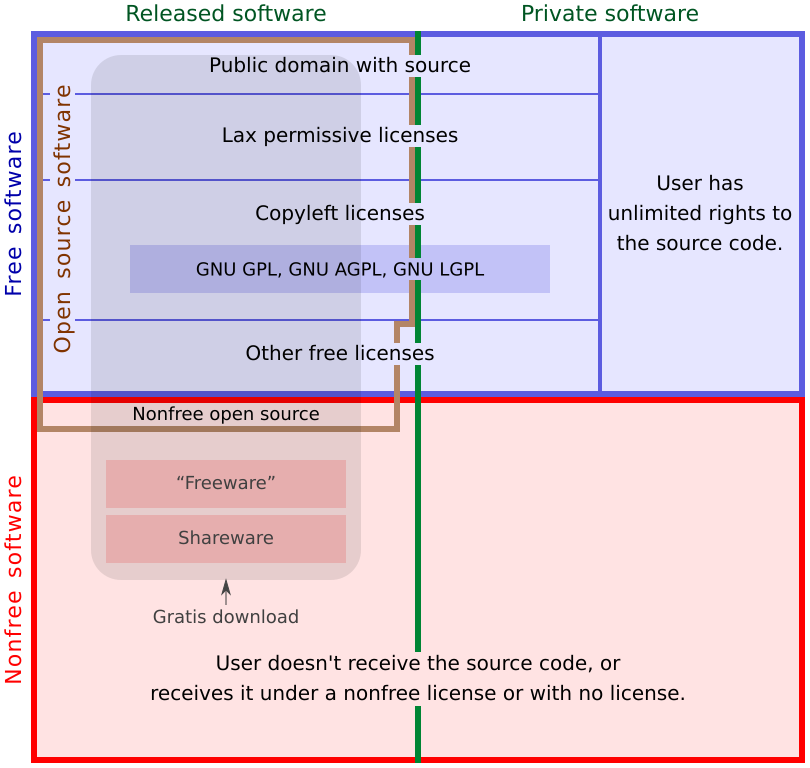
Although I was clear on the different types of software licensing agreements, I found the online article Making Sense of Software Licensing: The Stuff in Small Print Really Does Matter by author Chris Peters to be very helpful as far showing just how many types of agreements there are.


Directly quoted from the Peters article, the following definition of a software agreement couldn't be better:
"A software license is an agreement between you and the owner of a program which lets you perform certain activities which would otherwise constitute an infringement under copyright law."
EULA

We've all had to agree to EULA's, or end user license agreements, when downloading new programs onto our systems. These agreements explicitly state the terms in which the program is to be used. Without them, it would be impossible to use any program without infringing on copyright. Instead of looking at them as one more thing to click through during installations, realize that they are beneficial in making sure the licensor and licensee are both protected. 

Free vs. Proprietary

"Free" software refers to the rights you have when using the software--this type is usually redistributable and can be modified without paying a fee or obtaining any kind of permission. Proprietary licenses have fewer rights. Monetary price has no correlation; either type may be free or must be purchased. 

Public Domain and Copyleft

Copyleft is similar to free software in the sense of unrestricted rights, that is, all except for one. Any modifications must fall under the same terms as the original software, which prevents other developers from releasing their own versions under a proprietary license. When releasing any work into the public domain however, all rights are forfeited including ownership of the work, and it it free to use in any manner.


For a further analysis on licensing, the article can be found here.

Graphic Source: GNU Operating System: Categories of Free and Nonfree Software

Sunday, September 25, 2011

Week 5: Clear on Presentations


Graphic Sources:
Flickr user: copperfeesh
Public Domain images

Presentation © Sarah Reyes

Sunday, September 18, 2011

Week 4: Clear on Resource-Based View

In order for a company to retain a competitive advantage, its exploitable resources must have these four requirements:

Value
The company must devise a way to create value in their products or service, or else consumers will not make the purchase. This can be created by strategic marketing, such as establishing a strong brand image or even paying close attention to price--too low, and products are perceived as low value, too high and you could damage your sales. The right price constitutes the proper flow of customers, while maintaining value in the product or service.

Rarity
A resource must be rare, or else it will add no value to your company. Take for example a gallon of milk, which can be purchased at drugstores, small shops, and large retailers alike. The resource itself adds no competitive advantage, and therefore retailers must rely on pricing to get the product moving. There is no such thing as customer loyalty when your product does not have some level of rarity. 

Imperfectly Imitable 
Resources must be difficult to copy. Luxury items are a perfect example of this. The prestige of owning a certain car or brand creates a niche of consumers dedicated to that particular item. A Lamborghini cannot be replicated.

Non-Substitution
As discussed in the lecture, Miracle Whip is no substitute for Mayo. For those perhaps familiar with the hazelnut, chocolaty spread Nutella, you know there is no such thing as a substitute. Since customers cannot buy a similar product, there is no such thing as competition from a rival with the exact product.

Graphic Source: Flickr user c.a.muller

Sunday, September 11, 2011

Week 3: Clear on Network Topology

Local area networks (LANs) come in a variety of different shapes, each having their own unique advantages and disadvantages:

Bus Topology 
All nodes are connected to a single cable, or bus. This is an easy and inexpensive set up. However, if there is any type of connection issue, the entire network is down which also makes it difficult to pinpoint the source of the problem. 

Token Ring 
All nodes are connected as a giant ring which has no beginning or end. A token of code is then passed from neighbor to neighbor in an endless cycle, until it reaches the node it was intended for.


Star Topology 
All nodes are connected to a single, central point, which can be a hub, switch, or router. There are no disruptions to the network if one node shuts down or is added. If the central hub is disabled, however, the connected nodes are all off the network.


For more examples on network topology, visit http://fcit.usf.edu/network/chap5/chap5.htm

Graphics: © Sarah Reyes 2011